> ## Documentation Index
> Fetch the complete documentation index at: https://hyperframes-codex-docs-human-first-refactor.mintlify.site/llms.txt
> Use this file to discover all available pages before exploring further.
# Edit design and properties
> Change text, layout, style, media, 3D transforms, and color for a selected element.
Select an element, click **Inspector**, then open **Design** to change what it says and how it looks.
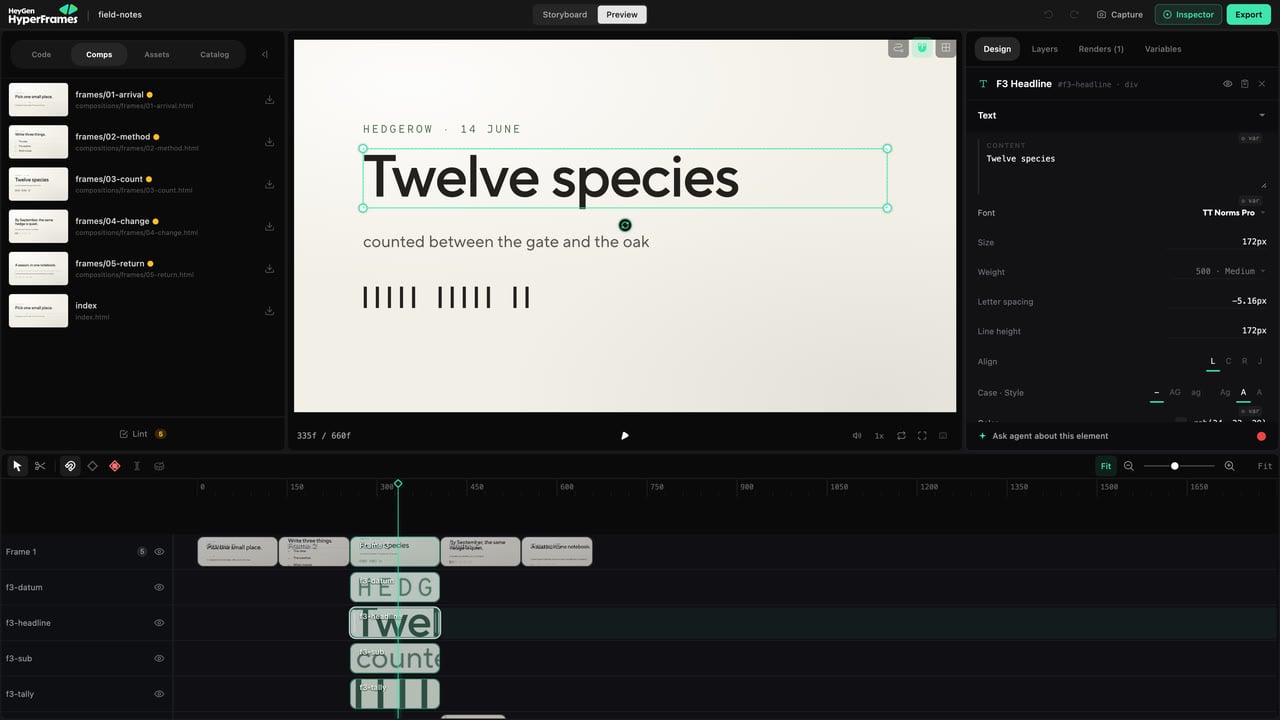 The available sections depend on the selected element.
## Common tasks
* **Text:** wording, font, weight, size, line height, alignment, and spacing.
* **Layout:** position, size, spacing, and alignment.
* **Style:** fill, border, radius, opacity, shadow, and visual effects.
* **Media:** source, fit, crop, and element-specific playback settings.
* **Motion:** animation and keyframes.
* **3D:** supported perspective and transform controls.
* **Grade:** color adjustments for images and video.
## Make one type of change at a time
If the element feels wrong, identify whether the problem is:
* the content;
* the hierarchy;
* the layout;
* the visual style;
* the timing;
* the motion.
Changing all six at once makes the result difficult to judge and harder to undo selectively.
## Check readability
After styling text:
1. view it at the final output size;
2. play the full entrance and exit;
3. check contrast over every background it crosses;
4. confirm it remains on screen long enough to read.
Use [Color grading](/guides/color-grading) for a deeper media workflow.
The available sections depend on the selected element.
## Common tasks
* **Text:** wording, font, weight, size, line height, alignment, and spacing.
* **Layout:** position, size, spacing, and alignment.
* **Style:** fill, border, radius, opacity, shadow, and visual effects.
* **Media:** source, fit, crop, and element-specific playback settings.
* **Motion:** animation and keyframes.
* **3D:** supported perspective and transform controls.
* **Grade:** color adjustments for images and video.
## Make one type of change at a time
If the element feels wrong, identify whether the problem is:
* the content;
* the hierarchy;
* the layout;
* the visual style;
* the timing;
* the motion.
Changing all six at once makes the result difficult to judge and harder to undo selectively.
## Check readability
After styling text:
1. view it at the final output size;
2. play the full entrance and exit;
3. check contrast over every background it crosses;
4. confirm it remains on screen long enough to read.
Use [Color grading](/guides/color-grading) for a deeper media workflow.