> ## Documentation Index
> Fetch the complete documentation index at: https://hyperframes-codex-docs-human-first-refactor.mintlify.site/llms.txt
> Use this file to discover all available pages before exploring further.
# Edit on the canvas
> Select and directly adjust visible elements in the current frame.
The canvas is the fastest place to make a change when you can see the target.
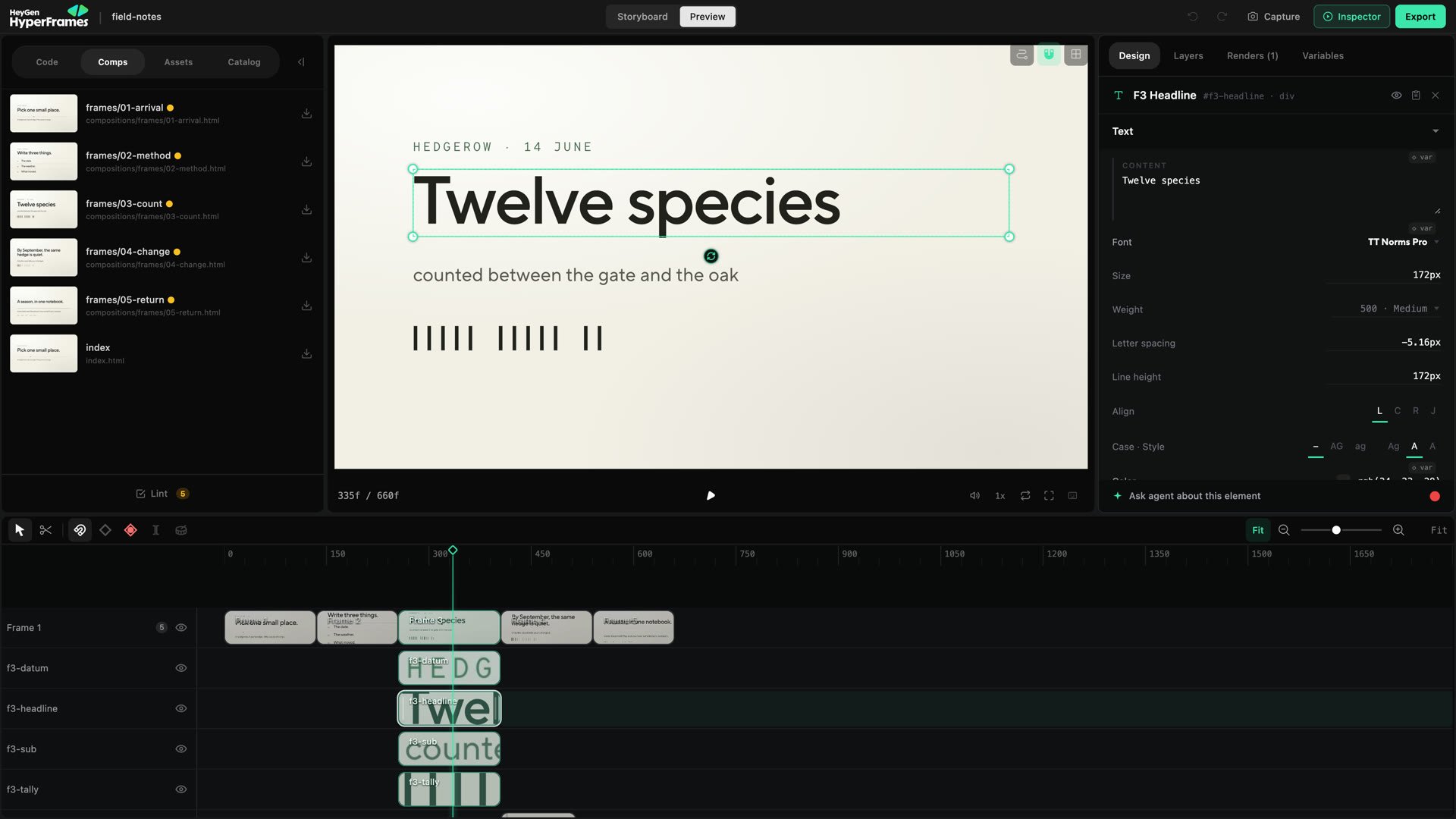 ## Select an element
Pause on a frame where the element is visible, then click it.
If elements overlap, use Layers to select the exact one. An off-canvas indicator can help locate something positioned outside the visible frame.
## Move and resize
* Drag inside the selection to move it.
* Drag a handle to resize it.
* Use arrow keys for a small nudge.
* Watch the alignment guides when snapping appears.
Play the surrounding moment after moving something. An element can look correct at the current frame but collide with another element during its animation.
## Rotate and crop
Use the rotation control for supported visual elements.
Use crop controls for images and video when you want to change which part of the media appears without changing the element’s place in the layout.
## Select more than one element
Use marquee selection when you want to move several canvas elements together. Group them when they should continue behaving as one unit.
## Auto-keyframe changes
The timeline toolbar contains an auto-keyframe control. It is enabled when the
button is highlighted.
* Turn it off when you want a layout change to remain constant.
* Leave it on when you intentionally want a manual adjustment recorded as
animation at the current playhead time.
Check the timeline for a new keyframe after the edit.
Check the auto-keyframe button before moving an element. A change that looks
like a layout correction can become motion when the project plays.
## If an edit is unavailable
Some generated, nested, or source-controlled elements cannot support every direct manipulation safely. Try:
1. selecting the parent or child from Layers;
2. opening the nested composition;
3. using the inspector;
4. copying context to your agent;
5. editing the source when you understand the project structure.
## Select an element
Pause on a frame where the element is visible, then click it.
If elements overlap, use Layers to select the exact one. An off-canvas indicator can help locate something positioned outside the visible frame.
## Move and resize
* Drag inside the selection to move it.
* Drag a handle to resize it.
* Use arrow keys for a small nudge.
* Watch the alignment guides when snapping appears.
Play the surrounding moment after moving something. An element can look correct at the current frame but collide with another element during its animation.
## Rotate and crop
Use the rotation control for supported visual elements.
Use crop controls for images and video when you want to change which part of the media appears without changing the element’s place in the layout.
## Select more than one element
Use marquee selection when you want to move several canvas elements together. Group them when they should continue behaving as one unit.
## Auto-keyframe changes
The timeline toolbar contains an auto-keyframe control. It is enabled when the
button is highlighted.
* Turn it off when you want a layout change to remain constant.
* Leave it on when you intentionally want a manual adjustment recorded as
animation at the current playhead time.
Check the timeline for a new keyframe after the edit.
Check the auto-keyframe button before moving an element. A change that looks
like a layout correction can become motion when the project plays.
## If an edit is unavailable
Some generated, nested, or source-controlled elements cannot support every direct manipulation safely. Try:
1. selecting the parent or child from Layers;
2. opening the nested composition;
3. using the inspector;
4. copying context to your agent;
5. editing the source when you understand the project structure.